
The CoCoBee
Way back in 2011 (I think) I set forth with a project using the now defunct CoCoNet and SerialPak by Roger Taylor. I modified a Serial Pak to use an XBEE modem, and crceated a wireless serial cable. I recently found a copy of that documentation, so I figured I’d repost it. Now as back then, I find it highly unlikely anyone would want to duplicate this – it still isn’t very cheap. But I suppose the same thing could be done with DriveWire if one so chose…
What is a CoCoBee? Well, it’s a Tandy Color Computer that uses XBee Wireless modules to connect to a server application on PC. More specifically, the XBee is connected to a CoCo3.com Serial Pak, with another connected to a USB port on a PC. The software is the CoCoNet ROM 1.26 in the Pak and the CoCoNet Server app on the PC. What do you need to do this? To duplicate exactly what I have done, you’ll need the following (in no particular order):
- CoCo3.com Serial Pak
- Adafruit XBee Adapter (kit form) –
http://www.adafruit.com/index.php?main_page=product_info&cPath=29&product
s_id=126 - XBee device (you’ll need two)
http://www.adafruit.com/index.php?main_page=product_info&cPath=29&product
s_id=128 - Xbee Explorer from Sparkfun: http://www.sparkfun.com/products/9819
- USB to mini-USB cable
- Download the X-CTU XBee configuration app from Digi
- Some skill with a soldering iron
- Some patients…
It’s important to note that when purchasing the XBee modems, you’ll want the Series 1.
The Series 2 and 2.5 offer more features and longer range, but, are a little more difficult
to configure; and slightly more expensive. And besides that, I already had the Series 1
units lying around, so that’s was this tutorial is based on.
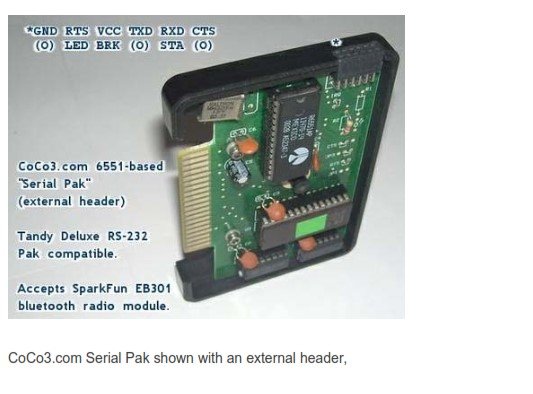
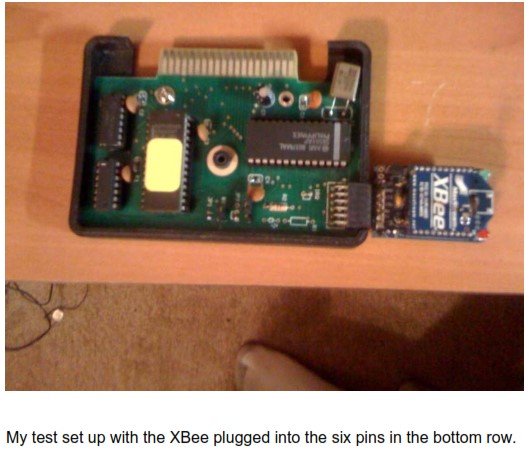
When connecting the XBee to the Serial Pak, I used an Adafruit XBee adapter kit; you
can buy a pre-assembled one for $10 more. When I assembled mine, I only used the six
pins in the white box shown on the adapter here: http://www.ladyada.net/make/xbee/.
They are a perfect match to the bottom six pins of the header on the Serial pak. The
Serial Pak has connections for a multitude of signals, however, there are only six that
are necessary for successful and reliable operation of the XBee modules with the CoCo.
These are the following signals you need:
1. Ground
2. RTS
3. 5vdc
4. TxD
5. RxD
6. CTS
As you can see in the following images, the six pins of the bottom row of the Serial Pak header is all that is used with the XBee modem.
XBee Configuration:
The XBee Explorer is necessary because that is how the PC will send data thru it’s XBee modem to the CoCo’s XBee modem. You’ll have to install the FTDI USB drivers on your PC for it to work. Once you do that, download the X-CTU program from Digi’s website. This application is used to configure the XBee. This application is used to configure the XBee. This application is used to configure the XBee. This application is used to configure the XBee.
You can use a terminal application such as Hyper Terminal, but, I found the Digi application easier to use to configure the modems.
When you have the drivers installed, and the XBee in the Sparkfun XBee Explorer,
connect the cable to PC and XBee Explorer. You should bee greeted with a few flashing lights on the Explorer PCB. Once that’s done, launch the X-CTU application. The screen will look like the image to the right.
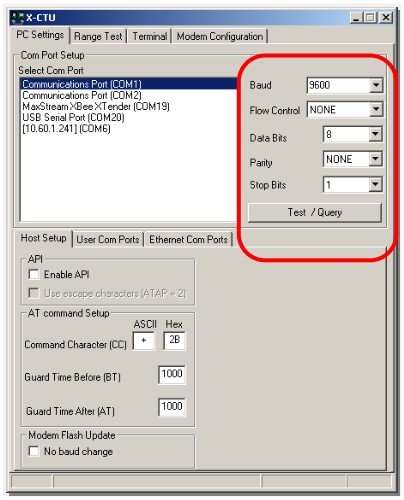
Highlight the COM port that was installed when the FTDI driver was installed; that
should be the one that recognizes the XBee Explorer. By default, the XBee’s come
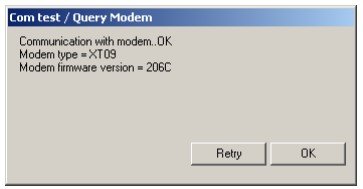
configured as shown in the previous image, so if you have done everything right to this point, if you click ‘Test/Query you should be greeted with something close to the next
image:
Click OK to clear the message box. If you’ve made it this far, great job. If not, crack open a beer, relax a bit, and look everything over again.
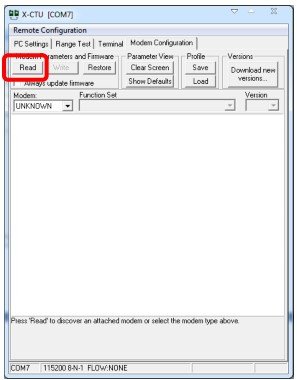
The next step is to configure the XBee; you’ll have to assign specific information to each one to make it act as a serial cable replacement, so click on the ‘Modem Configuration’ tab and let’s get going! Clicking the ‘Read’ (Right IMage) button will make X-CTU read the configuration of the XBee as shown in the next image. By clicking on the text in the window, you can change that setting.
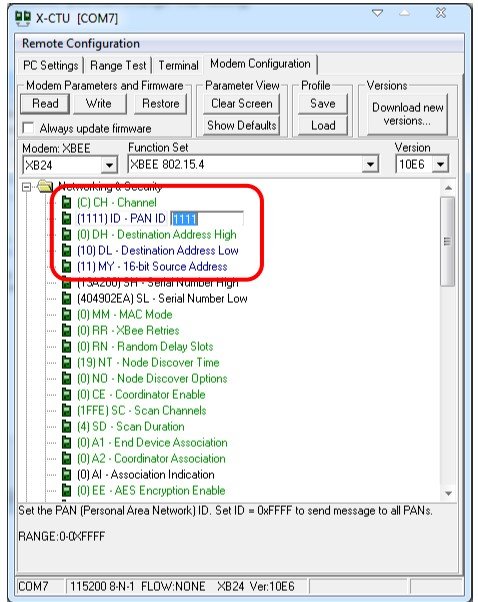
The following setting need configured:
1. PAN ID – think of it as the network name
2. DL (Destination Address Low) – your best friend’s phone number
3. MY (Source Address) – your phone number
The PAN ID will be the same on both XBee units. The DL and MY will be reversed on
each unit.
As an example, here’s how I set my two modules up using AT commands:
XBEE1:
ATID = 1111
ATMY = 10
ATDL = 11
ATBD = 7
XBEE2:
ATID = 1111
ATMY = 11
ATDL = 10
ATBD = 7
ATBD is the baud rate setting, shown to the right:
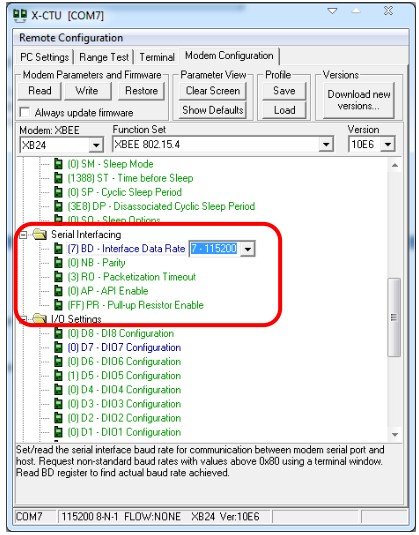
As you can see, ATBD7 sets the baud rate to 115200; the maximum baud rate for a series 1 XBee device. The question of the moment becomes: what is that the baud rate of? That’s the baud rate that the XBee talks to the device it’s physically connected to; i.e.: the PC or the CoCo Serial Pak. The XBee modems talk to each other at a rate of 250,000bps, so there should never be a situation where the information gets to the
XBee faster than it can transmit it out.
Once you’ve configured the XBee, click ‘Write’ to write the new configuration. You’ll have to go back to the ‘PC Settings’ tab to set the baud rate to 115,200, then ‘Test/Query’ to make sure the settings took. When done with the first one, configure the second, remembering to reverse the DL and MY settings. You can use the XBee Explorer to configure both radios, and it does not matter which radio is used where.
Configuring CoCoNet Server
Configuring CoCoNet Server involves changing the coconet.ini file, though you can enter the appropriate values when starting the server; just over-ride the defaults.
When setting everything up, make sure to use the proper COM port and CoCoNet settings for the 6551 method of data transfer.
Mine didn’t work out of the gate. The CoCo would connect to the PC and the server would start, but, no data would be transferred; it always ended up with an I/O error on the CoCo. It took MUCH searching and a lot of discussion between Roger and I, and Digi Tech Support and I, to get to the bottom of the problem, which is; there is a problem with the XBee radios and the 115,000 baud rate. Due to the clock crystal used on the series 1 XBee’s, it cannot do a true 115,200 baud; it’s actually 111,111.
(see the image on the next page)
Goofy? Yes, and VERY aggravating. I worked on this project all thru Christmas, and into the new year before I found the problem. Digi’s tech support tried to help, but, was lacking in either understanding my questions or my understanding their response. I actually found it in the forums where there is a ‘stickied’ post about the problem.
Once I set CoCoNet to communicate at 111,111, everything has been working fantastic. So remember when setting up CoCoNet Server; if you use the 115,200 setting with the XBee, make sure to set CoCoNet to 111,111. The COM port is set to 115,200, but, I guess CoCoNet over-rides that setting because I’ve had no issues since.
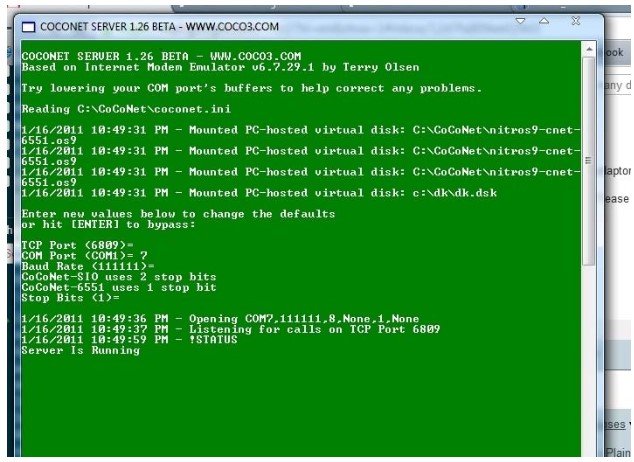
(showing CoCoNet configured to 111,111 baud rate)
To test the reliability of the connection I used the following program:
10 FOR X =1 TO 10000
15 DRIVE 1,@”C:\DK\DK.DSK”
20 DIR
25 DRIVE 1,@”C:\COCOIMAGES\FEB85.DSK”
30 DIR
40 SAVE”TEST.BAS”
45 PRINT”THIS IS CYCLE: ” X
50 NEXT X
This little program mounts a dsk image, reads it, mounts another, reads it, then writes itself to that second image. It’s set up to loop ‘X’ times in line 10. The largest number I’ve used for ‘X’ has been 25000. It failed on a write on number 21583, an I/O error – I know I had a much larger amount of failures on real hardware when I was a kid.
There used to be captured video of this – but like the hardware used in this project, it’s long gone.
Summary
While I know this works and is a VERY reliable connection, I also have no illusions about the number of people following in my footsteps to duplicate my effort. This is an expensive method of wireless $40 for 2 Xbee radios, $10 for an Adafruit kit, $25 for the Sparkfun XBee USB Explorer, plus the cost of the coco3.com Serial Pak.
You’re easily over $100 to do what a cable can do for a much lower price.
Indeed, if I didn’t already have everything except the Adafuit adapter, there’s no way in Hades I’d have attempted this project. While it was fun, and I learned quite a bit, it’s just not a financially feasible method to make a wireless connection between your CoCo and PC.